
FAQ & Troubleshooting
- Charging
- Pairing the Camera
- 1. Why do Birdfy products only support 2.4GHz Wi-Fi?
- 2. My device cannot scan the QR code on my phone. What should I do?
- 3. My device fails to connect to Wi‑Fi after scanning the QR code. What should I do?
- 4. My device fails to connect to the server after successfully connecting to Wi‑Fi. What should I do?
- Power On/Off & Reboot
- Live Streaming & Camera Connection
- Moments & Notifications
- 1. I'm not receiving any notifications. What's wrong?
- 2. I'm getting too many empty videos (false alarms). What should I do?
- 3. I only want to receive bird-related notifications. How can I do that?
- 4. My Moment videos are not loading. What should I do?
- 5. Motion detection is not working. What should I do?
- 6. My Moment videos are shorter than 20 seconds. What should I do?
- The Birdfy App
- 1. How do I watch birds on my phone?
- 2. Can more than one person connect to one Birdfy?
- 3. What is the Community feature in the Birdfy app? Are my videos automatically shared to the Community?
- 4. I forgot my account password. / "Incorrect Password" when I tried to log in.
- 5. I logged in with Apple or Facebook — Can I link an email and set a password?
- 6. Common error messages and solutions
- The Birdfy Cloud
- Firmware
- Hardware
Charging
1. How long does Birdfy last on one charge?
Battery life depends on the Birdfy model you have and the level of bird activity it captures. For example, the Birdfy Feeder 1 can last up to 3 months on a single charge if it records about 10 videos (20 seconds each) per day. To minimize the hassle of recharging, we recommend connecting your Birdfy to a solar panel.
2. My device isn't charging at all. What should I do?
If your device isn't charging, try these steps:
- Check the temperature: Make sure the ambient temperature while charging is between 0℃ and 40℃ (32℉ and 104℉). If the temperature is outside this range, the camera may not charge properly.
- Check the status light: When plugged in, see if the device's status light turns on.
- If the light is on, the device is charging correctly.
- If the light is off, continue troubleshooting.
- If the device is charging but the app doesn't show it, the device may be offline and unable to update its charging status with the server.
- Reboot the device: Use an ejector pin to poke the reboot hole or press the reboot button for 1 second. Then, try charging again.
- Verify the adapter specifications: Confirm that you're using the correct adapter for your Birdfy model: Some models require 5V/1A, others 5V/1.5A, or 5V/2A. Check your user manual for the exact specifications.
- Inspect the charging cable and adapter: Look for damage or faults in the cable or adapter. Try using a different cable and adapter to charge the device.
- Check the charging port: Ensure the charging port is clean, free of dust or dirt, and undamaged. Make sure the charging cable is securely connected.
If the device still doesn't charge after trying all the above steps, email support@birdfy.com for assistance.
3. My device cannot be charged fully. What should I do?
If your device isn't reaching a full charge, follow these steps:
- Allow enough charging time: Charge the device for the recommended duration (5.5 or 10 hours, depending on the model). Refer to the user manual for the specific charging time for your device.
- Check the adapter specifications: Confirm you're using the correct adapter for your Birdfy model: Some models require 5V/1A, others 5V/1.5A, or 5V/2A. Refer to the user manual to ensure compatibility.
If the issue persists, contact support@birdfy.com for assistance.
4. Why is the solar panel not charging the device?
If your solar panel isn't charging the device, try the following:
- Ensure sufficient sunlight: Place the solar panel in direct sunlight. Overcast or dull conditions may prevent it from generating enough voltage to charge the device.
- Check the temperature: Make sure the ambient temperature while charging with the solar panel is between 0℃ and 40℃ (32℉ and 104℉). If the temperature is outside this range, the camera may not charge properly.
- Check the status light: When connected to the solar panel, check if the device's status light is on.
- If on, the device is charging properly.
- If off, move to the next steps.
- Test with a charger: Take the device indoors and charge it using a charger.
- If the device charges normally with the charger (status light turns on), the solar panel may be faulty. Contact support@birdfy.com for a replacement.
- If the device doesn't charge with the charger either, contact support@birdfy.com for further assistance.
5. Why can't the solar panel fully charge the device?
Solar panels are primarily designed to maintain your device's battery level, not to charge it from 0% to 100% quickly. For best results, fully charge the device with a charger first, then use the solar panel as a supplemental power source to help keep it topped up.
Pairing the Camera
1. Why do Birdfy products only support 2.4GHz Wi-Fi?
In general, a 2.4 GHz Wi‑Fi network is more stable and offers a wider coverage area than 5 GHz, especially outdoors and through walls. For this reason, current Birdfy products are designed to work on 2.4 GHz Wi‑Fi only. We are actively working on upgrading the Wi‑Fi modules in Birdfy products so they can support both 2.4 GHz and 5 GHz networks in the future. Stay tuned for updates!
2. My device cannot scan the QR code on my phone. What should I do?
If your camera does not recognize the QR code on your phone during pairing, please try the following steps:
- Confirm the camera is in Wi‑Fi configuration mode (flashing blue light): If the camera is not in Wi‑Fi configuration mode, it will not be able to scan the QR code.
- Check that the camera is powered on:
- Briefly press the power button.
- The blue light should turn on for a moment.
- If there is no light, press and hold the power button for about 3 seconds to turn the camera on.
- Enter Wi‑Fi configuration mode:
- Double‑press the power button.
- The blue light should start flashing, indicating the camera is ready to scan the QR code.
- Check that the camera is powered on:
- Make sure the camera lens is clean:
- If there is a plastic protective film on the lens, remove it.
- If the lens is dirty or blurry, the camera may not be able to read the QR code.
- Gently clean the lens with a soft, dry cloth to remove dust, smudges, or fingerprints.
- Help the camera focus on the QR code:
- Slowly adjust the distance between your phone and the camera until the QR code comes into focus. Recommended distance: about 5–15 cm (2–6 inches).
- Ensure the lighting is moderate:
- Avoid very dark environments or direct, harsh light on the screen.
- Increase your phone's screen brightness if the camera still fails to scan the code.
3. My device fails to connect to Wi‑Fi after scanning the QR code. What should I do?
If your device cannot connect to your home Wi‑Fi after scanning the QR code, several factors may be causing the issue. Please check the possible causes and troubleshooting steps below.
3.1 Wi-Fi is Not 2.4GHz
Currently, all Birdfy cameras only support 2.4 GHz Wi‑Fi networks. If your home network is 5 GHz only, the camera will not be able to connect.
How can I check if my home Wi‑Fi is 2.4 GHz or 5 GHz?
- If your router broadcasts separate networks for 2.4GHz and 5GHz bands, you can identify the 2.4GHz network by its name (e.g., "XXXX_2.4G"), while the 5GHz network may appear as "XXXX_5G".
- If your 2.4 GHz and 5 GHz bands share the same network name, you may need to confirm in the router settings:
- Open a web browser on your phone or computer and enter your router's IP address (commonly 192.168.1.1 or 192.168.0.1).
- Log in using the admin username and password (found on the router or in the user manual).
- Navigate to Wi-Fi Settings and confirm that the 2.4GHz frequency band is enabled.
I don't know how to access my router settings. How else can I tell if my Wi‑Fi is 2.4 GHz or 5 GHz?
If you cannot log into your router, you can still check the Wi‑Fi frequency using your phone:
- Check via Wi‑Fi settings (Android only)
- On your Android phone, open Settings > Wi‑Fi and tap your connected network.
- In the network details, look for:
- Frequency/Band: It may display "2.4 GHz" or "5 GHz".
- Channel: Channels 1–13 indicate 2.4 GHz, while channels 36 and above indicate 5 GHz.
- Use a Wi-Fi Analyzer App
- On iPhone (iOS):
- Download and install the AirPort Utility app from the App Store.
- Go to Settings > AirPort Utility and enable Wi-Fi Scanner.
- Open the AirPort Utility app and select Wi-Fi Scan.
- Start scanning to see a list of nearby Wi-Fi networks and their details: Channels 1–13 indicate 2.4 GHz, while channels 36 and above indicate 5 GHz.
- On Android:
- Download a Wi‑Fi analyzer app (for example: WiFi Analyzer by farproc, WiFi Signal Meter, NetSpot, etc.).
- Open the app and locate your connected Wi‑Fi network.
- Look for information such as Frequency, Channel, or Band: Channels 1–13 indicate 2.4 GHz, while channels 36 and above indicate 5 GHz.
- On iPhone (iOS):
3.2 Unsupported Router Security Mode (WPA3)
Birdfy cameras do not support WPA3‑only encryption. If your home Wi‑Fi uses WPA3 only, the camera will not be able to connect. To check and adjust your router's security mode:
- Connect to Your Router: on your phone or PC, connect to your home network via Wi-Fi or Ethernet.
- Access Router Settings: Open a web browser and enter your router's IP address (e.g., 192.168.1.1). Check the router's label or manual for the correct IP address.
- Log in to the Router Interface: Enter the admin username and password. If you've changed these credentials and forgotten them, reset the router to factory settings.
- Navigate to Wireless Settings: Look for options like Wireless, Wi-Fi Settings, or Security.
- Select Encryption Mode: Choose WPA2 or WPA/WPA2 Mixed Mode and avoid selecting WPA3.
- Save Changes: Click Save or Apply to confirm.
3.3 Incorrect Wi-Fi Password
If your Wi‑Fi is 2.4 GHz and the security mode is compatible, double‑check the password you entered:
- Ensure it is exactly the same as your router's Wi‑Fi password.
- Passwords are case‑sensitive.
- Watch out for extra spaces, special characters, or common typos.
3.4 Unstable Wi-Fi Connection
If the signal is weak or unstable, the camera may fail to connect:
- Move the Birdfy camera closer to your router and try pairing again.
- Restart your router and wait 1–2 minutes for it to fully boot up.
- Then restart the pairing process in the Birdfy app.
3.5 Router Compatibility Issue
If you have tried all of the above and the camera still cannot connect, there may be a compatibility issue with your router. To test this, try using a mobile hotspot:
- Set up a mobile hotspot
- Use Phone A to create a 2.4 GHz hotspot.
- On iPhone, enable "Maximize Compatibility" under Personal Hotspot to ensure it broadcasts at 2.4 GHz.
- Connect and pair through the hotspot
- Use Phone B to connect to the hotspot and open the Birdfy app.
- Tap the "+" icon to add a new device and follow the pairing steps.
- Allow the Birdfy camera to connect to the hotspot network.
If the camera successfully connects to the hotspot, the issue likely lies with your router. In this case, try creating a guest network on your router. Here's an example on how to create a guest network on an Eero router:
- Download the Eero app from the App Store or Google Play.
- Sign in using your registered Eero account.
- In the app, tap Settings.
- Select Guest Network or Guest Wi-Fi.
- Toggle the switch to turn it on.
- Set a network name and password.
- Tap Save or Apply to activate the guest network.
4. My device fails to connect to the server after successfully connecting to Wi‑Fi. What should I do?
If your device connects to your Wi‑Fi network but shows a "Failed to connect to server" error, the issue is likely related to router compatibility or network configuration, rather than the Wi‑Fi signal itself.
- Try connecting the camera using another phone's mobile hotspot as a test.
- If the camera connects successfully through the hotspot, the issue is likely with your router. In this case, create a guest network on your router following the instructions shown above and connect the camera to that network.
Power On/Off & Reboot
1. How do I power on/off or reboot my Birdfy camera?
To power on/off your Birdfy camera:
- Press and hold the power button for 3 seconds.
- A blue light will illuminate, indicating the camera is powered on.
- When powered off, the blue light will turn off.
- For some Birdfy models, you may also hear a tone when the camera powers on or off.
To reboot your Birdfy camera:
Rebooting completely cuts power to the device and can often resolve minor glitches. If your camera goes offline or fails to stream, try rebooting it first before using more complex troubleshooting steps.
- Use the provided ejector pin to press the reboot hole located next to the power button. For some Birdfy models with a reboot button, press and hold the reboot button for 1 second to shut down the camera.
- Then, press and hold the power button for 3 seconds to restart the camera. The blue light should turn on to indicate the camera has powered up.
2. My device cannot be powered on. What should I do?
If your Birdfy device does not power on, follow these steps:
- Fully charge the device: The device may simply be out of battery. Charge it fully using the provided charging cable, then try powering it on again by pressing and holding the power button for 3 seconds.
- Try rebooting the device (if fully charged but no lights): If the device is fully charged but shows no blue light when you press the power button, and/or does not show a charging red or yellow light, try a reboot:
- Ensure the camera is disconnected from the solar panel or charger before rebooting.
- Use the included ejector pin to press the reboot hole located next to the power button.
- For some Birdfy models, you may need to press and hold the reboot button for 1 second instead.
- After rebooting, try turning the device on again.
If the issue persists, contact our support team at support@birdfy.com.
3. Why does the blue light not flash when I double‑press the power button?
When you double‑press the power button, the camera should enter Wi‑Fi configuration mode, and the blue light should start flashing. If this does not happen, try the following:
- Device not powered on:
- The camera may not be turned on.
- Press and hold the power button for 3 seconds to power it on. A solid blue light should appear.
- Then double‑press the power button to enter Wi‑Fi configuration mode. The status light should begin flashing blue.
- If the device still does not enter Wi‑Fi configuration mode, try a reboot:
- Ensure the camera is disconnected from the solar panel or charger before rebooting.
- Use the included ejector pin to press the reboot hole next to the power button. For some Birdfy models, press and hold the reboot button for 1 second instead.
- Turn the camera back on by pressing and holding the power button for 3 seconds, then try double‑pressing the power button again to enter Wi‑Fi configuration mode.
If the issue persists, contact our support team at support@birdfy.com.
Live Streaming & Camera Connection
1. Live feed is not loading. What should I do?
If your camera’s live feed is not loading, please try the troubleshooting steps below.
1.1 Restart the App and Camera
First, rule out simple app or camera glitches by restarting both.
- Restart the Birdfy app
- Close the Birdfy app completely.
- Reopen the app and try loading the live feed again.
- Reboot the camera
- Use the included ejector pin to press the reboot hole on the camera. For some Birdfy models, press and hold the reboot button for 1 second instead.
- Then press and hold the power button for 3 seconds to turn the camera back on.
- Make sure the camera is fully charged and not shutting down due to low battery.
1.2 Check if the Camera Is Disconnected From Wi‑Fi
If restarting doesn’t help, check your camera’s Wi‑Fi connection.
- Check whether other devices can access the internet using the same Wi-Fi network.
- If they cannot, restart your router and try reconnecting the camera.
1.3 Check for Weak Wi‑Fi Signal at the Camera
The camera may have trouble loading the live stream if the signal is too weak.
- Move the camera closer to your router.
- Consider using a Wi-Fi extender or booster to improve signal strength. Alternatively, connect the camera to a different Wi-Fi network or a mobile hotspot.
1.4 Make Sure Your Phone Has Internet Access
Sometimes the live stream will not load because your phone has lost connection.
- Ensure your phone is connected to the internet (Wi‑Fi or mobile data).
- Make sure the Birdfy app has network permissions (no data restrictions).
- Try the following:
- Refresh the device list by pulling down on the app homepage.
- Switch between Wi‑Fi and mobile data on your phone to test connectivity.
- Use another phone to access the live feed.
1.5 Check for a Router Compatibility Issue
- Follow the instructions in "My device fails to connect to Wi‑Fi after scanning the QR code. What should I do?" to test the connection using another phone's mobile hotspot.
- If the camera connects successfully via the hotspot, the issue is likely with your router. Create a guest network on your router and connect the camera to it.
If the issue persists, contact our support team at support@birdfy.com.
2. Camera is offline. What should I do?
If your camera shows as offline in the app, try the steps below.
- Check the Battery Level
- Ensure the camera has sufficient charge.
- If the battery is low, fully charge the camera and try again.
- Verify Your Wi-Fi Connection
- Confirm that your home Wi‑Fi is working properly (other devices should be able to go online).
- If necessary, try to reconnect the camera to your Wi‑Fi network using the Birdfy app.
- Adjust the Device's Orientation
- Wi‑Fi signal strength can be affected by walls, distance, and especially metal.
- If you’re using a Birdfy Feeder Metal, make sure the camera is facing your router to maximize signal reception.
- Reboot the Camera
- Ensure the camera is not connected to a solar panel or charger.
- Use the included ejector pin to press the reboot hole, which will completely power down the camera. For some Birdfy models, press the reboot button for 1 second instead.
- Press and hold the power button for 3 seconds to restart the camera.
If the issue persists, contact our support team at support@birdfy.com.
Moments & Notifications
1. I'm not receiving any notifications. What's wrong?
If videos are being recorded (you can see them in the Moment section of the Birdfy app) but you’re not receiving notifications, try the steps below.
1.1 Check Notification Settings in the Birdfy App
- Open the Birdfy app.
- Go to Settings > Moment Settings > Notification.
- Ensure that "Never" is not selected.
- Remove any filters under "Do Not Disturb".
1.2 Check Notification Settings on Your Phone
For iPhone (iOS)
- Go to Settings > Notifications > Birdfy
- Ensure Allow Notifications is enabled.
- Turn on all alert styles (Lock Screen, Notification Center, Banners).
- Set Show Previews to Always or When Unlocked.
For Android
- Go to Settings > Apps > Birdfy > Notifications.
- Make sure notifications are allowed.
- Enable banners, sounds, and vibrations as needed.
1.3 Check Battery-Saving Settings
Battery‑saving modes can limit background activity and block notifications.
For iPhone (iOS)
- Go to Settings > Battery.
- If Low Power Mode is on (toggle is green), switch it off.
- This restores full background activity so notifications can be delivered reliably.
For Android
- Swipe down to open the Quick Settings Panel.
- Look for Battery Saver or Power Saving Mode.
- If enabled, tap to disable it.
- On some devices, long-press the icon to access detailed settings.
- Disable any battery optimizations for the Birdfy app.
2. I'm getting too many empty videos (false alarms). What should I do?
If you see many Moment videos that are empty or contain no meaningful bird activity, the motion sensor is likely being triggered by environmental factors instead of birds.
Common causes of false triggers include:
- Rapid changes in ambient temperature
- Sudden exposure to strong light (e.g., direct sunlight, reflections, car headlights)
- Large or direct airflows (wind gusts, fans, air conditioners)
To reduce false alarms, avoid installing the device in these locations:
- Near air conditioner vents or fans that blow directly onto the camera
- Close to ventilation openings, heaters, or other heat sources
Tip: Install the camera in a shaded, stable environment, away from direct sun and strong airflows. This helps minimize environmental interference and significantly reduces false motion triggers.
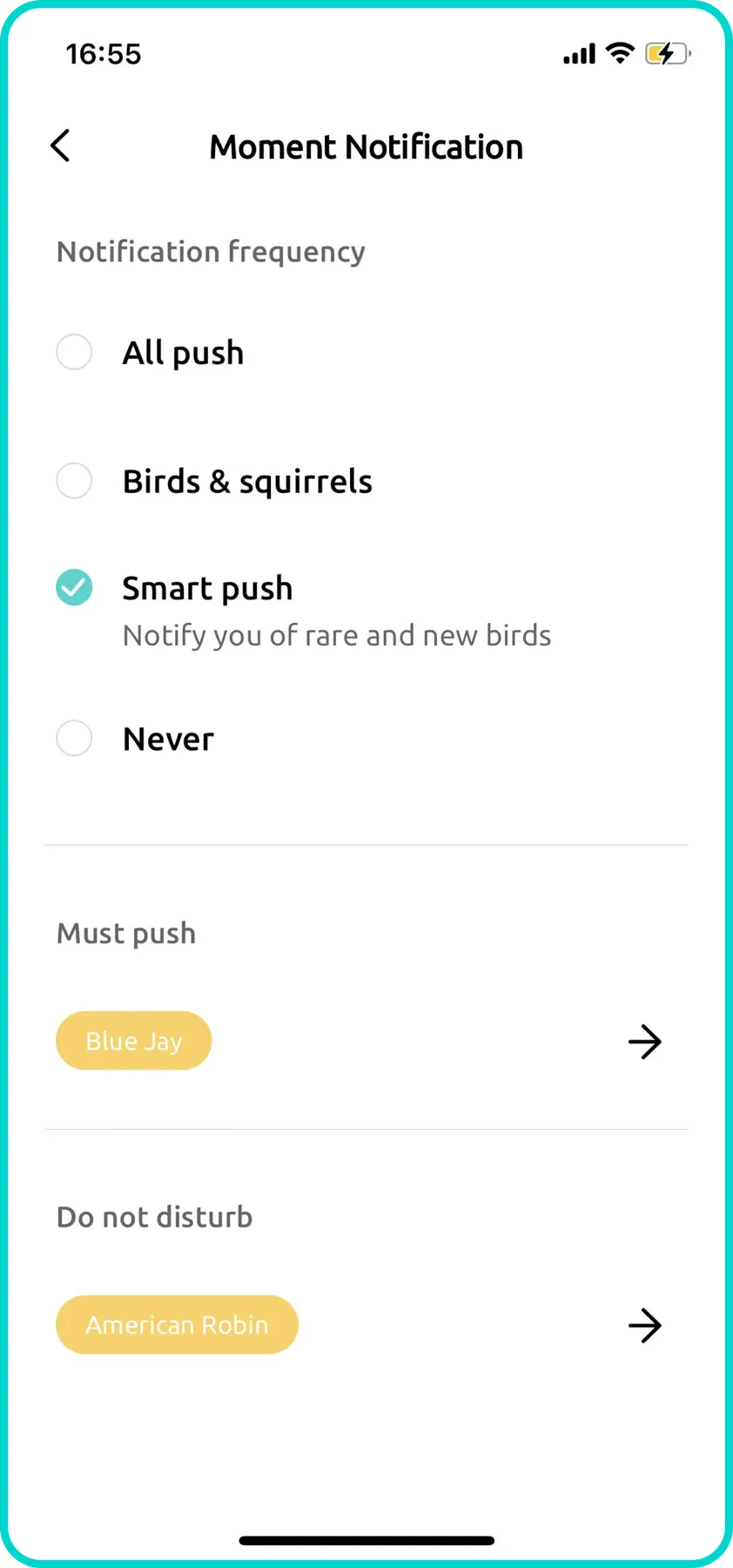
3. I only want to receive bird-related notifications. How can I do that?
If you’re receiving too many alerts and only want notifications about birds, follow these steps:
- Ensure your Birdfy camera has the AI Bird Recognition service activated.
- Open the device settings and navigate to: Notification > Notification Frequency, then select Birds & Squirrels.
- This setting ensures you'll only receive notifications when birds or squirrels are detected.
- If you prefer not to receive notifications for squirrels, you can add the "squirrel" tag to your Do Not Disturb list. This will mute squirrel-related alerts.

4. My Moment videos are not loading. What should I do?
If your Moment videos are not loading, try the steps below:
4.1 Check for a Weak Network Signal
- Restart both the camera and your Wi‑Fi router.
- Move the camera closer to your router to improve Wi‑Fi signal strength, then try loading the videos again.
4.2 Check for Router Compatibility Issues
- Follow the instructions in "My device fails to connect to Wi‑Fi after scanning the QR code. What should I do?" to test the connection using another phone’s mobile hotspot.
- If the camera connects successfully via the hotspot, the issue is likely with your router. Create a guest network on your router and connect the camera to it.
If the issue persists, contact our support team at support@birdfy.com.
5. Motion detection is not working. What should I do?
If your camera is not detecting motion, first check the Motion Detection settings in the Birdfy app. Go to Birdfy App > Settings > Moment Settings, and check the following:
-
Cooldown Time
- This controls the minimum time between motion-triggered recordings.
- Example: If cooldown time is set to 5 minutes, the camera will ignore new motion for 5 minutes after a recording is triggered.
If you’re missing events, try reducing the cooldown time.
-
Sensitivity
- Adjust the slider (0%–100%) or choose a preset: Low, Medium, or High.
- For maximum sensitivity, set to 100% or High.
If motion is not being detected reliably, try increasing the sensitivity.
-
Notification Settings
- Ensure notifications are enabled.
- Do not select "Never" as the preference.
- Remove any filters under "Do Not Disturb".
If the issue persists, contact our support team at support@birdfy.com.
6. My Moment videos are shorter than 20 seconds. What should I do?
If your Moment videos are shorter than 20 seconds (or 30 seconds if you’ve subscribed to the MVR cloud service), the most common cause is a slow or unstable network connection, which can interrupt or delay video uploads.
To improve recording length and upload stability, try the following:
-
Lower the Recording Resolution
Reducing video quality decreases the upload size and helps prevent incomplete uploads.
For supported Birdfy models:
- Open the Birdfy app and go to your Device Settings.
- Navigate to Moment Settings > Clarity or go to More Settings > Video Resolution.
- Lower the clarity to 50% or below, or select SD resolution.
-
Move the Device Closer to Your Router
- Place the camera closer to your Wi‑Fi router to improve signal strength and stability.
- Avoid thick walls, metal objects, or long distances between the camera and the router where possible.
-
Upgrade Your Internet Plan (If Needed)
- If your upload bandwidth is consistently limited, consider switching to a higher‑speed plan.
- Higher upload speeds make it easier for full‑length videos to be sent to the cloud without being cut off.
The Birdfy App
1. How do I watch birds on my phone?
Watching birds on your phone with Birdfy is simple and convenient. Start by following the steps in the user manual to charge and power on your Birdfy camera. Next, download the Birdfy app from the App Store or Google Play, and create a Birdfy account. Once you're logged in, tap "Add Device" and follow the instructions to pair your Birdfy camera with the app. After setup, place your Birdfy camera outside in your garden, and enjoy watching your first avian visitors!
2. Can more than one person connect to one Birdfy?
Yes! You can share access to your Birdfy with an unlimited number of family and friends, as long as they have a Birdfy account. Simply follow the app's instructions: My Devices > Settings > How to Share.
Shared users will have access to the live feed and recorded clips from your Birdfy camera. However, they won't be able to change any settings or delete your videos.
3. What is the Community feature in the Birdfy app? Are my videos automatically shared to the Community?
The Community feature in the Birdfy app is a space where users can share their bird videos with other Birdfy enthusiasts. Your videos are not automatically shared to the Community. You must manually select a video, tap the share button, and choose "Community" to post it.
4. I forgot my account password. / "Incorrect Password" when I tried to log in.
If you've forgotten your Birdfy account password or need to reset it, simply tap "Forgot password?" on the login page. An email will be sent to your registered address with instructions to reset your password. If the issue persists, contact our support team at support@birdfy.com.
5. I logged in with Apple or Facebook — Can I link an email and set a password?
Yes! If you originally signed in using Apple or Facebook and now want to link an email and set a password, follow these steps:
- Tap your profile icon on the home page.
- Go to Personal Information > Email and link your preferred email address.
- Log out of your account.
- On the login page, tap "Forgot password?"
- A password reset email will be sent to the address you just linked. Follow the instructions to set a new password.
This will allow you to log in using your email and password in the future.
6. Common error messages and solutions
| Error Message | Possible Causes | Solutions |
|---|---|---|
"Download failed. Please check your network status and retry." | Poor network connection on your phone, leading to a failed download. |
|
"Video playback failed" |
|
|
The Birdfy Cloud
1. Where are the bird videos stored?
If your Birdfy camera captures frequent visits from birds, you might wonder where the videos are stored and whether they take up space on your phone. Here's the answer: all videos are automatically uploaded to and safely stored in the cloud. Unless you download them onto your phone, they will not use any local storage.
Without a subscription, cloud-stored videos are cleared after 30 days. If you'd like to extend this duration, visit my.birdfy.com and explore the Moment Video Recording cloud service. Additionally, you can save your favorite videos indefinitely by adding them to your Collection via the star-shaped icon. Keep in mind that Collection storage is limited to 5GB of free space. Of course, you can always download videos and store them in your phone's album for future viewing.
2. Do Birdfy products have cloud storage?
Yes, all Birdfy products (except birdhouses) include unlimited cloud storage with a 30-day retention period. Videos older than 30 days are automatically deleted unless you subscribe to the Moment Video Recording service at my.birdfy.com, which extends the retention period to 60 days.
For Birdfy birdhouses, videos are saved indefinitely while the current story is active. After the story concludes, videos are kept for 30 additional days before being deleted.
3. What is the difference between "AI Lifetime Free" and "AI by Subscription"?
These terms describe the availability of Birdfy's AI Bird Recognition cloud service. Most Birdfy products come in two versions:
- AI Lifetime Free: This version activates bird recognition automatically, with no further action required on your part.
- AI by Subscription: With this version, you'll receive a 7-day free trial of bird recognition. If you enjoy the service, you can subscribe on a monthly, yearly, or one-time payment basis to keep using it.
4. What kind of cloud services can I subscribe to?
Birdfy offers a variety of cloud services. For a detailed overview, check out Cloud Service or visit my.birdfy.com to view all available services and manage your subscriptions.
Firmware
1. Firmware failed to update. What should I do?
If your camera couldn’t update to the latest firmware, try the steps below:
1.1 Check the Device Battery and Network Connection
- Open the Birdfy app and go to the Livestream page.
- Confirm the battery level is above 30%. If it’s below 30%, the device may not start the update.
- Once the livestream loads successfully, go back to Settings and try the firmware update again.
1.2 Try a Different Network
- Connect the device to a different Wi‑Fi network (or your phone's mobile hotspot) and then try the update again.
If the issue persists, please contact our support team at support@birdfy.com.
Hardware
1. Do Birdfy products support solar panels?
Yes, all Birdfy products are compatible with solar panels. Some models come with built-in solar panels, while others can be bundled with one when purchased.
2. Does my Birdfy support microSD card storage?
Most Birdfy products do not support microSD card storage, except for some of the earliest Birdfy Feeder 1 models. While your Birdfy camera may have a microSD card slot, it is only intended for manufacturer testing and not for local storage. Instead, all bird videos are securely saved in the cloud and can be accessed or downloaded anytime.
3. Get extra accessories or replacement parts
If you are looking to get extra accessories for your Birdfy product, here is a list of accessories available for purchase on birdfy.com:
| Accessory | Compatible Products |
|---|---|
Birdfy Solar Panel 3/5/8W (available with optional chew-proof cable) | All Birdfy Products |
| Birdfy Solar Panel | |
| Birdfy Feeder | |
| Birdfy Feeder | |
| Birdfy Feeder | |
| Birdfy Feeder | |
| Birdfy Feeder | |
| Birdfy Feeder | |
| Birdfy Feeder Bamboo | |
| Birdfy Hum Feeder Duo | |
| Birdfy Hum Feeder Duo | |
| Birdfy Feeder 2 Series | |
| Birdfy Feeder 2 Duo | |
| Birdfy Bath Pro | |
| Birdfy Bath Pro | |
| Birdfy Pole / Birdfy Pole Pro |
Note: If a part of your Birdfy product is broken or missing, don’t worry—we’ve got you covered! Simply reach out to support@birdfy.com, and our support team will assist you with getting a replacement part.